*Bells & Whistles version 5 is now available. See what's new.
Bells & Whistles: Using Outlook Email Tracking IDs
Use our Outlook add-in to easily manage Inbox emails by inserting email tracking IDs and numbering replies
Bells & Whistles offers an easy way of tracking email messages and discussion
threads, by adding tracking IDs within the subject of outgoing email replies.
To enable this option, simply open the Bells & Whistles configuration window, then go to the "Other Options" tab and mark the checkbox called "Add tracking ID on every message thread":
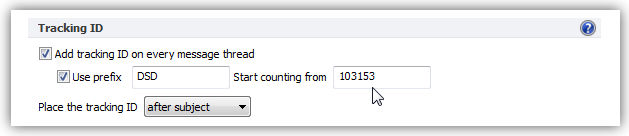
By default, Bells & Whistles will start counting IDs from 100000, but you can choose to start counting from a different number, by inserting that number on the counter text box. You can also use a prefix for the counter: this way, if you have multiple Bells & Whistles users, you can make a difference between tracking ids issued by user A and user B, based on their prefix.
Numbering Replies per Subject on Outlook
To enable the reply subject counter, from the Reply Options menu section, enable the option "Auto-number replies per subject". Once this option is enabled, Bells & Whistles will add a reply number on the email subject, making it easier to track the history of an email exchange.
|



|
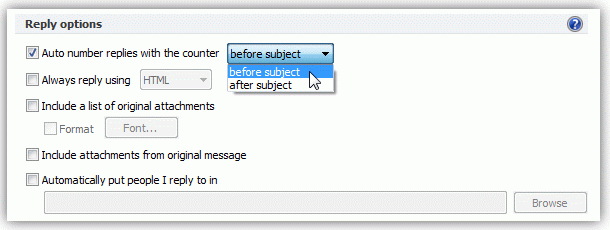
When this option is enabled, the subject of an email reply will be automatically formatted like this: "RE: [X] Subject text", where [X] is the reply number per unique subject.
When both of these options are enabled, the subject of an email reply will be automatically formatted like this: "RE: [#100006] [X] Subject text", where [#100006] is the unique tracking ID of each message thread, while [X] is the reply number per unique subject.
Bells & Whistles for Outlook: Main Features
Below you can find more information about some of the most important features of the Bells & Whistles add-in for Outlook. You are welcome to download a free evaluation copy of the Outlook add-in, yours to use for 20 days, with no purchase obligation.
Installation and Licensing the Outlook Add-in
Installing Bells & Whistles for Outlook;
Purchasing and registering the Bells & Whistles add-in for Outlook.
Outlook Reply Options & Alerts
Automatically add greetings to Outlook email messages;
Outlook "reply to all" monitor addin;
Automatically specify the Outlook email reply format;
Automatically put people I reply to in Contacts.
Outlook Email Templates
How to create and use the Outlook signature add-in;
How to use email templates on Outlook email messages;
How to use predefined Outlook email templates on Outlook messages.
Outlook Send Email Options
Insert email tracking IDs and count replies in Outlook;
Setting up a different Reply-To Address on Outook emails;
How to resend an Outlook sent email;
How to append date & time stamps to emails;
How to preselect the email account for sending Outlook messages;
Easy BCC mail merge sessions;
Always CC or BCC someone on every email;
How to always archive attachments when attaching files to Outlook emails.
Outlook Email Management Features
How to use email notes on Outlook messages;
Enable Outlook blocked attachments;
How to manage or remove Outlook add-ins.
System Requirements: Microsoft Windows Me, Windows 2000, Windows XP, Windows Vista, Windows 7 / Microsoft Office 2000, 2002 (XP), 2003, 2007, 2010, 2013 / Outlook 2000, 2002 (XP), 2003, 2007, 2010 and 2013 (x32 and x64).
|